為 Agent 配置工具
預設情況下,AgentBuilder Agents 僅包含其基礎 LLM 內建的功能。
您可以將工具附加到 Agent,以提供額外的目標功能。 例如,工具可用於建立特定領域的 agents,例如可以存取公司知識庫的客戶支援 agent、可以擷取股票價格的財務 agent,或可以使用進階數學函數來解決複雜方程式的數學家教 agent。
附加工具
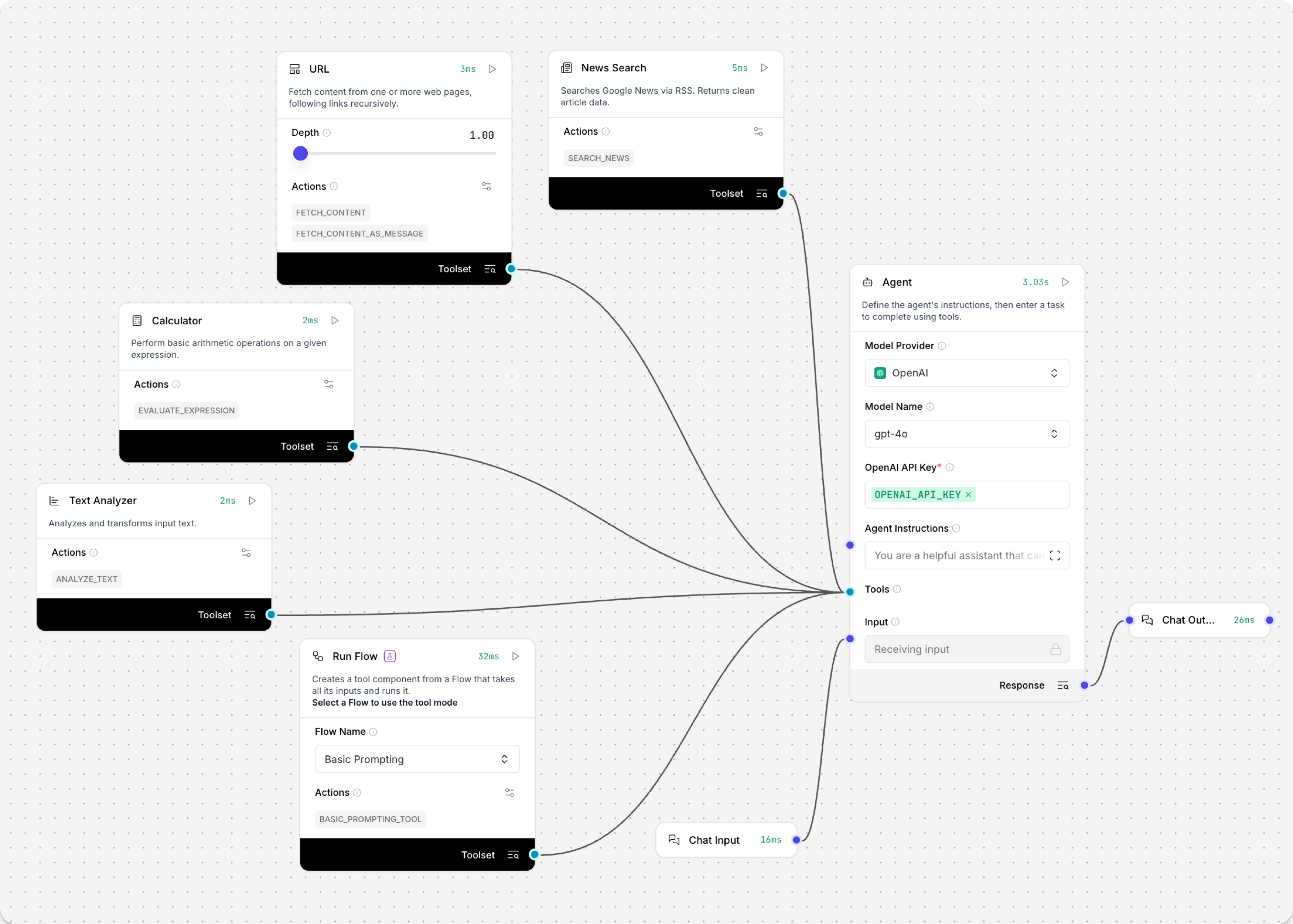
要將工具附加到 Agent,您可以將任何Components的 Tool 輸出連接到 Agent Components的 Tools 輸入。
某些Components預設發出 Tool 輸出。 對於所有其他Components,您必須在 Components標頭選單 中啟用 Tool Mode。 然後,您可以將工具連接到 Agent。
您可以將多個工具連接到一個 Agent,每個工具可以有多個動作(函數),Agent 可以調用這些動作。
當您運行FLOW時,Agent 會決定何時調用某些工具,如果它確定工具可以幫助它回應使用者的提示。
編輯工具的動作
當您將Components作為工具附加到 Agent 時,每個工具可以有多個動作(函數),Agent 可以調用這些動作。 可用動作列在每個工具Components的 Actions 列表中。
您可以更改每個動作的標籤、描述和可用性,以幫助 Agent 理解如何使用工具並防止它使用不相關或不需要的動作。
如果 Agent 似乎錯誤地使用了工具,請嘗試編輯動作元資料以澄清工具的目的,並停用不必要的動作。
您也可以嘗試使用 Prompt Template Components向 Agent 傳遞額外的指示或示例。
要查看和編輯工具的動作,請在工具Components上點擊 Edit Tool Actions。
為每個動作提供以下資訊:
-
Enabled:一個決定動作是否可供 Agent 使用的核取方塊。 如果選取,動作已啟用。 如果未選取,動作已停用。
-
Name:動作的人類可讀字串名稱,例如
Fetch Content。這無法更改。 -
Description:動作目的的人類可讀描述,例如
從網頁遞歸擷取內容。 要編輯此值,請雙擊動作的行以開啟編輯窗格。 當您點擊欄位外部或關閉對話框時,更改會自動儲存。 -
Slug:動作的編碼名稱,通常與名稱相同但使用蛇形命名,例如
fetch_content。 要編輯此值,請雙擊動作的行以開啟編輯窗格。 當您點擊欄位外部或關閉對話框時,更改會自動儲存。
某些動作允許您為其輸入提供固定值。 通常,您希望將這些留空,以便 Agent 可以提供自己的值。 但是,如果您正在嘗試調試 agent 的行為或您的用例需要動作的固定輸入,您可能會使用固定值。
使用 agent 作為工具
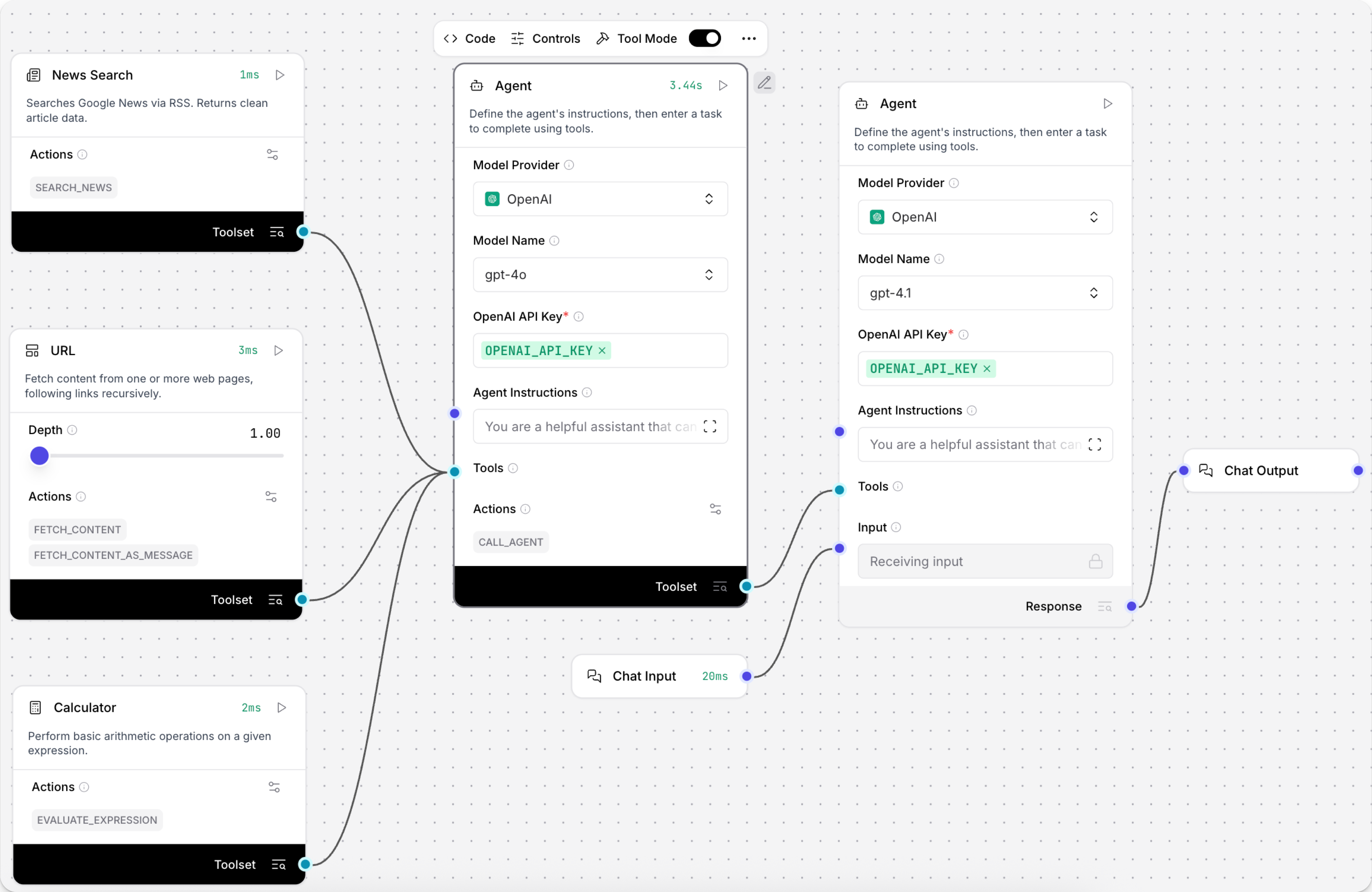
要建立多 agent Flow,您可以將另一個 Agent Components設定為 Tool Mode,然後將該 agent 作為工具附加到您的主要 Agent Components。
要親自嘗試,請在 Simple Agent 模板中新增額外的 agent:
-
基於 Simple Agent 模板建立FLOW。
-
將第二個 Agent Components新增到FLOW。
-
將您的 OpenAI API Key 新增到兩個 Agent Components。
-
在第二個 Agent Components中,將模型更改為
gpt-4.1,然後啟用 Tool Mode。 -
點擊 Edit Tool Actions 以 編輯工具的動作。
在此示例中,將動作的 slug 更改為
Agent-gpt-41,並將描述設定為使用 gpt-4.1 模型進行複雜問題解決。 這讓主要 agent 知道此工具使用gpt-4.1模型,這對於需要較大上下文視窗的任務可能很有幫助,例如大型刮取和搜尋任務。作為另一個示例,您可以將幾個專門的模型附加到主要 agent,例如針對某些任務或領域訓練的 agents,然後主要 agent 會根據需要調用每個專門 agent 來回應查詢。
如果您想限制可用的工具集,也可以啟用和停用工具。
-
將新 agent 的 Toolset 連接埠連接到現有 agent 的 Tools 連接埠。
新增自訂Components作為工具
Agents can use custom components as tools.
-
To add a custom component to an agent flow, click New Custom Component in the Core components or Bundles menu.
-
在 Code 窗格中輸入 Python 程式碼以建立自訂Components。
如果您還沒有自訂Components的程式碼,您可以在建立自己的Components之前使用以下程式碼片段作為示例。
文字分析器自訂Components
此程式碼建立一個文字分析器Components。
_50from langflow.custom import Component_50from langflow.io import MessageTextInput, Output_50from langflow.schema import Data_50import re_50_50class TextAnalyzerComponent(Component):_50display_name = "Text Analyzer"_50description = "Analyzes and transforms input text."_50documentation: str = "http://docs.langflow.org/components/custom"_50icon = "chart-bar"_50name = "TextAnalyzerComponent"_50_50inputs = [_50MessageTextInput(_50name="input_text",_50display_name="Input Text",_50info="Enter text to analyze",_50value="Hello, World!",_50tool_mode=True,_50),_50]_50_50outputs = [_50Output(display_name="Analysis Result", name="output", method="analyze_text"),_50]_50_50def analyze_text(self) -> Data:_50text = self.input_text_50_50# Perform text analysis_50word_count = len(text.split())_50char_count = len(text)_50sentence_count = len(re.findall(r'\w+[.!?]', text))_50_50# Transform text_50reversed_text = text[::-1]_50uppercase_text = text.upper()_50_50analysis_result = {_50"original_text": text,_50"word_count": word_count,_50"character_count": char_count,_50"sentence_count": sentence_count,_50"reversed_text": reversed_text,_50"uppercase_text": uppercase_text_50}_50_50data = Data(value=analysis_result)_50self.status = data_50return data -
在自訂Components中啟用 Tool Mode。
-
將自訂Components的工具輸出連接到 Agent Components的 Tools 輸入。
-
Open the Playground and instruct the agent,
Use the text analyzer on this text: "Agents really are thinking machines!"基於您的指示,agent 應該調用
analyze_text動作並返回結果。 例如:_10gpt-4o_10Finished_100.6s_10Here is the analysis of the text "Agents really are thinking machines!":_10Original Text: Agents really are thinking machines!_10Word Count: 5_10Character Count: 36_10Sentence Count: 1_10Reversed Text: !senihcam gnikniht era yllaer stnegA_10Uppercase Text: AGENTS REALLY ARE THINKING MACHINES!
使任何Components成為工具
If you want to use a component as a tool that doesn't have a Tool Mode button, add tool_mode=True to one of the component's inputs, then connect the new Toolset output to the agent's Tools input.
AgentBuilder 支援以下資料類型的 Tool Mode:
DataInputDataFrameInputPromptInputMessageTextInputMultilineInputDropdownInput
例如,使用自訂Components作為工具 中的示例程式碼在 MessageTextInput 輸入中包含 tool_mode=True,以便自訂Components可以用作工具:
_10inputs = [_10 MessageTextInput(_10 name="input_text",_10 display_name="Input Text",_10 info="Enter text to analyze",_10 value="Hello, World!",_10 tool_mode=True,_10 ),_10]
使用FLOW作為工具
Agents can use your other flows as tools, using the Run Flow component.
- 將 Run Flow Components新增到您的 Flow。
- Select the flow you want the agent to use as a tool.
- 啟用 Tool Mode。 選取的 Flow成為 Run Flow Components中的 動作。
- 將 Run Flow Components的 Tool 輸出連接到 Agent Components的 Tools 輸入。
- Open the Playground, then ask the agent,
What tools are you using to answer my questions?您的FLOW應該在回應中作為可用工具可見。 - Ask the agent a specific question that uses the connected flow as a tool. 連接的FLOW會根據您的問題返回答案。